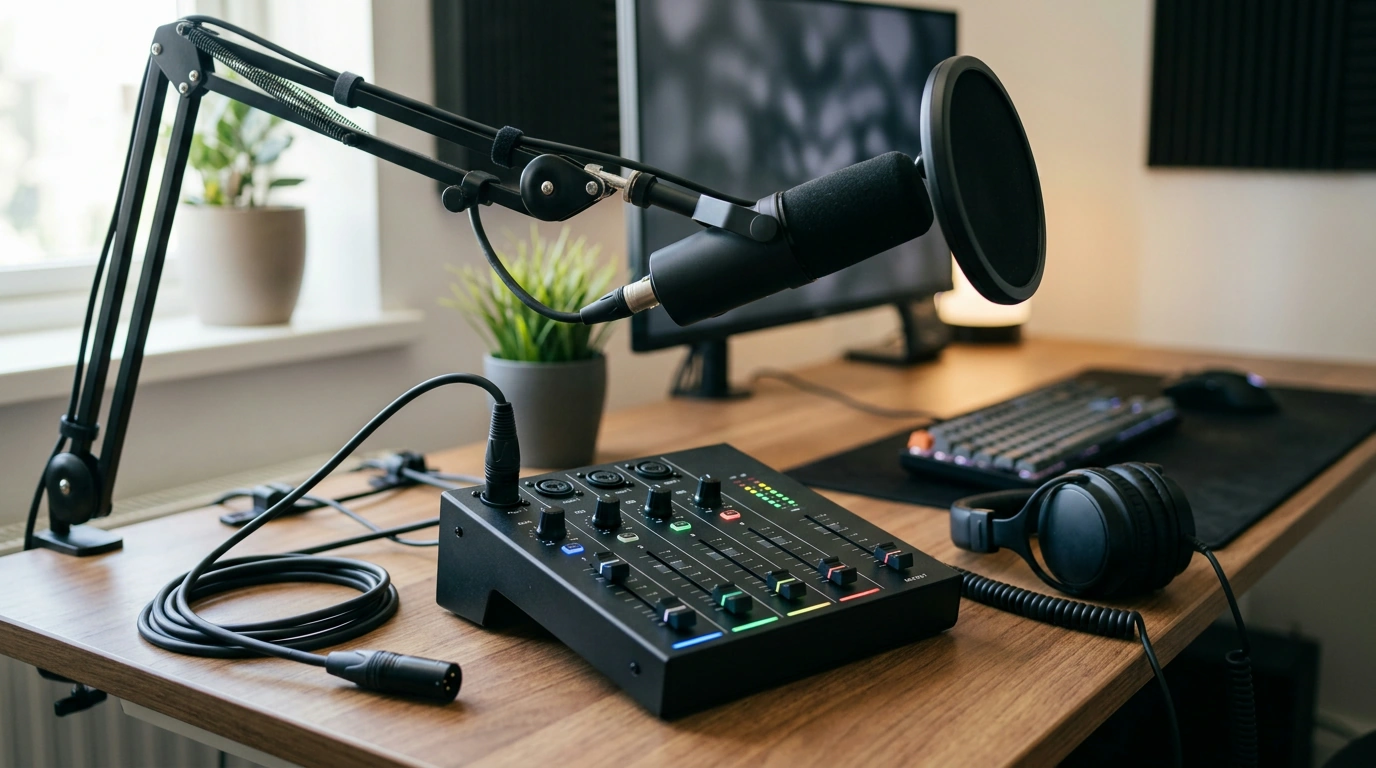
A stream or podcast can look polished and still feel “off” if the audio is uneven, noisy, or hard to balance live. An RGB audio mixer built for streaming, gaming, and podcasts helps keep voice, game, music, and chat under control in real time—while an XLR interface channel makes it easier to use a studio-style microphone chain. Our team put together this guide to help you build a simple 4-channel workflow that stays consistent on stream and in recordings. For more guidance, see Products of Interest | Computer Music Journal.
When you mix everything in software alone, you’re often chasing sliders mid-match or mid-sentence. A compact 4-channel mixer setup is designed to keep your most common audio moves fast and repeatable. For further reading, see OneOdio Solocaster | Headphone Reviews and Discussion.
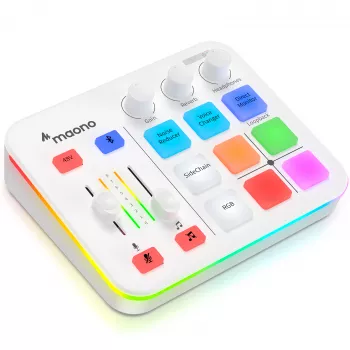
If you’re building or upgrading your desk, our RGB Audio Mixer for Streaming, Gaming & Podcasts with XLR Interface, 4-Channel is a straightforward option for a voice-forward, hands-on workflow.
A reliable starting point is to treat your microphone as the “reference” channel and mix everything else around it. That way, you avoid the common trap of boosting voice too far and hitting distortion.
| Mixer channel | Typical source | Goal in the mix | Quick check |
|---|---|---|---|
| XLR Mic | Dynamic/Condenser mic chain | Natural voice level without pumping | Speech stays clear over loud moments |
| PC/Game | Desktop/game sound | Immersion without masking words | Footsteps/explosions don’t bury consonants |
| Music/Alerts | Music player + stream alerts | Energy without harsh peaks | Stingers hit hard but don’t distort |
| Chat/Guest | Discord/VoIP or 2nd mic | Consistent guest intelligibility | Guest is audible at low speaking volume |
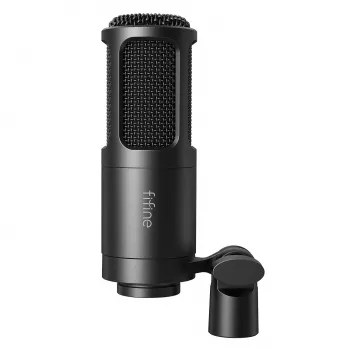
Your mic channel is where quality is won or lost. A clean, controlled voice starts with gain staging and mic technique—then you use mixing controls to maintain consistency.
For monitoring that makes issues obvious before your audience hears them, our team often recommends dedicated listening rather than relying on speaker playback. The High-Fidelity 9.2mm Beryllium-Coated Single Driver In-Ear Headphones are a solid, compact option to keep at your desk for quick checks.
Once your physical channels feel right, prevent “why does it sound different today?” moments by standardizing a few settings end-to-end.
If you’re using OBS, the official OBS Studio Documentation is a helpful reference for setting monitoring, tracks, and audio sources. Twitch also keeps a clear overview in Twitch Creator Camp: Audio.
An XLR interface channel lets you use a wider range of microphones and a more traditional gain-staging workflow, which can make it easier to capture clean speech consistently. It also supports common “mic chain” habits (mic placement, stable gain, and controlled levels) without relying entirely on software sliders.
Yes—typically you’ll map channels as mic, game/PC, music/alerts, and chat/guest, then balance around a voice-forward reference level. The exact routing depends on your OS and streaming app setup, but the four-role plan is a dependable baseline.
RGB helps when you use it for instant identification: each source gets a consistent color so you grab the right control without hesitation. That reduces mistakes during high-pressure moments and keeps your on-desk controls easier to read at a glance.




Leave a comment